
Drawing Glove for iPad: Essential Guide to Smudge-Free Digital Art and Note-Taking
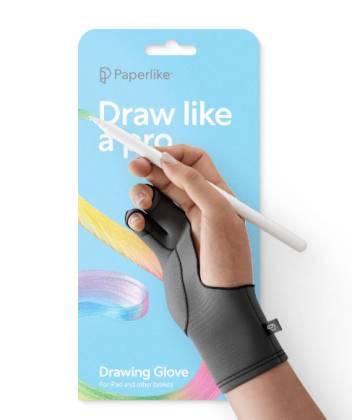
The seemingly simple drawing glove for iPad has quietly become indispensable for digital artists, designers, students, and anyone who spends extended time writing or drawing on touchscreen devices—transforming the frustrating experience of palm-rejection failures, screen smudges, and friction-induced hand fatigue into smooth, uninterrupted creative flow that rivals traditional pen-and-paper comfort. These specialized two-finger gloves, priced anywhere from $5 for generic Amazon options to $25 for premium offerings like Paperlike’s breathable, machine-washable design, address the fundamental problem that capacitive touchscreens can’t reliably distinguish between your Apple Pencil’s intentional strokes and your resting palm’s accidental touches—leading to those maddening moments when your hand inadvertently triggers undo, zoom, or eraser functions just as you complete a particularly satisfying illustration. Unlike crude workarounds such as wearing winter gloves with fingers cut off or balancing your hand awkwardly off the screen edge, purpose-built drawing gloves feature fingertip-free designs maintaining full gesture control, breathable fabrics preventing sweaty discomfort during marathon creative sessions, anti-friction materials allowing your hand to glide smoothly across glass surfaces that otherwise feel sticky against skin, and outer layers that actually clean smudges while you work rather than adding oils from your skin. This comprehensive guide examines whether you genuinely need a drawing glove based on your specific iPad usage patterns, explains exactly how these specialty gloves solve palm rejection and friction problems that plague digital artists, clarifies universal compatibility across all tablets and drawing apps from Procreate to GoodNotes, and explores how even base-model iPads transform into legitimate creative tools when paired with Apple Pencil and proper accessories—helping you decide whether this $10-25 investment elevates your iPad experience from occasionally frustrating to consistently enjoyable.
Do You Need a Drawing Glove for an iPad?
Whether you need a drawing glove for iPad depends primarily on how extensively you use Apple Pencil for drawing, note-taking, or design work, and how sensitive your specific iPad and apps are to palm rejection failures. Users who experience frequent accidental touches, palm-triggered gestures, or hand discomfort during extended drawing sessions benefit dramatically from drawing gloves—often describing them as “game-changing” accessories that should have been included with Apple Pencil purchases. Conversely, casual users who occasionally jot quick notes or doodle simple sketches may never encounter problems justifying glove purchases.
Palm rejection issues manifest differently across iPad models and apps, creating variable experiences that make some users desperate for solutions while others remain blissfully unaware problems exist. Apple Pencil’s palm rejection technology works remarkably well under ideal conditions—when you hold the Pencil at appropriate angles, rest your palm lightly rather than pressing firmly, and use apps with excellent palm rejection algorithms like Procreate, Apple Notes, or GoodNotes. However, the system fails when you rest your hand heavily while drawing detailed work requiring stability, wear rings or bracelets that touch the screen creating multiple touch points, work with sweaty or moisturized hands that conduct more electrical signals, or use apps with inferior palm rejection that register hand touches as intentional input.
The friction and comfort factor represents equally compelling reason for drawing gloves independent of palm rejection concerns. Bare skin dragging across glass creates noticeable resistance that tires your hand during extended sessions, particularly in warm environments where slight perspiration increases friction dramatically. Artists report hand fatigue and even mild soreness after 2-3 hour drawing sessions without gloves, while the same duration feels effortless when wearing smooth fabric gloves allowing hands to glide frictionlessly. This ergonomic benefit alone justifies glove purchases for professional digital artists and students taking handwritten notes throughout multi-hour lectures.
Screen cleanliness concerns affect users who notice their iPad displays accumulating oils, smudges, and fingerprints that degrade visual clarity and require frequent cleaning interrupting workflow. Drawing gloves with microfiber outer layers simultaneously clean screens while you work—your hand’s natural movement across the surface continuously wipes away smudges rather than depositing new ones. This maintenance benefit saves time otherwise spent stopping work to clean screens, though it proves more valuable for perfectionists bothered by visible smudges than practical necessity since most screens remain functional despite cosmetic uncleanliness.
You probably don’t need a drawing glove if you primarily use iPad for typing, video watching, web browsing, or other activities not involving stylus input; only use Apple Pencil for brief annotations or signatures lasting under 5 minutes; never experience accidental palm touches triggering unwanted actions; feel comfortable resting your palm on glass for extended periods; or find the appearance of wearing a glove while working aesthetically unacceptable or socially awkward. For these users, the $10-25 investment yields minimal practical benefit beyond novelty factor.
You definitely benefit from a drawing glove if you create digital art for hours weekly in Procreate or similar apps; take extensive handwritten notes using apps like GoodNotes, Notability, or Nebo; frequently experience accidental erasures or gesture triggers from palm touches; notice hand fatigue or discomfort after 30+ minutes of continuous writing/drawing; work in warm environments where perspiration increases skin friction against glass; or simply want the smoothest, most paper-like writing experience possible on iPad regardless of whether current setup feels problematic.
What is a Drawing Tablet Glove For?
A drawing tablet glove serves three primary functions that collectively transform the digital art and note-taking experience: preventing palm rejection failures through protective fabric layer between hand and screen, reducing friction enabling smooth hand movement across glass surfaces, and minimizing screen smudges through microfiber materials that clean rather than soil displays. The glove design specifically leaves thumb, index finger, and middle finger exposed—these digits need direct screen contact for pinch-to-zoom gestures, two-finger undo, three-finger swipe navigation, and other iPad multitouch controls essential for efficient workflow.
Palm rejection enhancement represents the most critical function. Drawing gloves work by creating a barrier between your palm’s conductive skin and the iPad’s capacitive touchscreen that detects electrical signals from fingers. The glove’s fabric—typically lycra, polyester, or nylon blends—either doesn’t conduct the weak electrical signals that activate touchscreens, or conducts them differently than bare fingertips in ways that allow iPad’s palm rejection algorithms to more reliably distinguish between your Apple Pencil and your resting hand. This essentially gives the palm rejection system clearer data to work with, reducing false positives where your palm registers as intentional touch input.
The effectiveness varies between glove materials and touchscreen sensitivity settings. Quality gloves from brands like Paperlike, XPPen, and Wacom use specific fabric blends optimized for capacitive touchscreen interaction, while generic gloves may use materials that either partially conduct electricity (causing inconsistent palm rejection) or completely block touch (preventing problems but eliminating beneficial features like two-finger scrolling with gloved hand). The best gloves achieve the delicate balance of blocking palm touches while allowing Apple Pencil to work normally and maintaining some level of finger touch sensitivity for gesture controls.
Friction reduction dramatically improves comfort during extended work sessions by allowing hands to glide smoothly rather than stick and drag across glass. The phenomenon occurs because smooth synthetic fabrics like lycra have lower coefficients of friction against glass than human skin, particularly slightly moist or oily skin that creates adhesion through surface tension and moisture. Artists describe the experience as transforming “dragging” hand movement into “floating” across the screen—a subtle but meaningful difference that reduces fatigue and enables faster, more confident strokes.
The smoothness benefit proves most noticeable during detailed shading, hatching, and crosshatching techniques requiring rapid repetitive hand movements, or when executing flowing calligraphy strokes where hesitation from friction breaks the fluid motion essential to attractive letterforms. The reduced friction also prevents the slight skin-dragging sensation that can register tactilely as unpleasant or distracting, allowing you to focus entirely on your creative work rather than physical hand sensation.
Smudge prevention and screen cleaning functions stem from the microfiber or smooth synthetic outer layer that doesn’t deposit oils like bare skin, while actively collecting dust and oils already present on screens through the fabric’s microscopic fibers. Premium gloves like Paperlike specifically feature outer polyester layers that clean as you work—your normal hand movements across the screen during drawing or writing simultaneously wipe the surface clean. This passive cleaning maintains screen clarity without requiring you to stop work for manual cleaning, though periodic dedicated cleaning remains necessary for thorough maintenance.
Additional benefits include temperature regulation through breathable fabrics that prevent the sweaty hand discomfort common during extended bare-skin iPad contact in warm environments, protection for both hand and screen by preventing moisture transfer and reducing wear from constant skin-to-glass contact that can gradually degrade oleophobic coatings, and professional appearance when using iPad for client presentations or demonstrations where wearing a specialized artist glove signals serious creative professional rather than casual hobbyist.
Do Artist Gloves Work with All Tablets?
Yes, artist gloves exhibit universal compatibility across virtually all tablets, drawing displays, and touchscreen devices because they function through passive physical properties rather than active electronic communication requiring device-specific protocols. The drawing glove for iPad models from Paperlike, XPPen, Wacom, Huion, and generic manufacturers work identically on iPad Pro, iPad Air, standard iPad, iPad mini, Samsung Galaxy Tab, Microsoft Surface, Wacom Cintiq, XP-Pen Artist displays, Huion Kamvas pen displays, and any other capacitive touchscreen device. This universal functionality means a single glove purchase serves your entire device ecosystem without requiring separate gloves for different tablets.
The compatibility extends beyond tablets to smartphones, laptops with touchscreens, drawing monitors, and even traditional pen-on-paper (though the friction reduction benefit obviously doesn’t apply to paper). The glove doesn’t “connect” to devices through Bluetooth, cables, or software drivers—it simply sits on your hand providing passive physical benefits that work regardless of device brand, model, or operating system. This distinguishes drawing gloves from active accessories like styluses that require specific protocols and compatibility verification before purchase.
However, effectiveness varies based on screen technology and palm rejection algorithms even though technical compatibility remains universal. iPads with Apple Pencil generally feature excellent palm rejection that drawing gloves enhance to near-perfect reliability, while some budget Android tablets with inferior palm rejection algorithms may experience minimal improvement from gloves if the underlying software can’t adequately distinguish between stylus and touch input. The glove provides clearer data to palm rejection systems, but can’t compensate for fundamentally poor algorithms that struggle even with that clearer information.
The two-finger design (covering pinky and ring finger while leaving thumb, index, and middle finger exposed) has become standard across most artist gloves because it balances palm protection with gesture control functionality. Some alternative designs cover all fingers while leaving only fingertips exposed, or use removable fingertip caps providing flexibility to expose more or fewer fingers based on preference. The three-exposed-finger design specifically accommodates iPad’s common multitouch gestures: two-finger undo, pinch-to-zoom, three-finger swipe, rotation, and other controls that would become unusable with fully covered hands.
Sizing considerations affect fit and therefore effectiveness, but brands typically offer small, medium, and large options with flexible fabric accommodating range within each size. Most gloves feature ambidextrous design fitting either left or right hand—you simply orient the exposed-finger portion to whichever hand you’re wearing it on. This versatility means left-handed and right-handed artists use identical products without requiring separate left/right versions, simplifying inventory and reducing confusion during purchase.
Some specialty gloves target specific use cases beyond standard digital art: extra-breathable models for tropical climates or users with hyperhidrosis (excessive sweating), compression-fit athletic fabric versions for users who want snug fit without constriction, full-finger models with conductive fingertips for users who want complete hand coverage while maintaining all-finger touchscreen interaction, and ergonomic designs with extra padding for users with arthritis or hand pain requiring cushioning beyond standard thin glove materials.
Can a Regular iPad Be Used for Drawing?
Absolutely—a regular iPad can be used for drawing with remarkable results when paired with Apple Pencil and quality drawing apps, delivering professional-grade digital art capabilities at fraction of the cost of iPad Pro models or dedicated drawing tablets from Wacom, Huion, or XP-Pen. The base model iPad (10th generation, 2024, starting at $349) supports Apple Pencil (1st generation $99 or USB-C $79), runs powerful apps like Procreate ($12.99), and features sufficient processing power for complex illustrations with dozens of layers—everything necessary for serious digital artwork, illustration, design, and note-taking.
The performance differences between standard iPad and iPad Pro matter primarily for professional artists working on extremely complex projects or users who value premium features enough to pay 2-3x higher prices. iPad Pro offers ProMotion 120Hz displays reducing perceived Apple Pencil latency from 20ms to 9ms (a difference most users can’t consciously detect but may subconsciously appreciate), M-series chips providing faster brush stroke rendering in apps like Procreate when using complex brushes or massive canvases, Face ID versus Touch ID authentication, and larger screen options (11-inch and 12.9-inch/13-inch versus 10.9-inch standard iPad). However, the standard iPad’s 60Hz display, A14/A16 Bionic chip, and 10.9-inch screen prove completely adequate for hobbyist artists, students, bullet journal enthusiasts, and even many professional illustrators whose workflows don’t push hardware limitations.
The Apple Pencil experience on standard iPad matches iPad Pro for fundamental capabilities including pressure sensitivity (detecting 4096 levels of force), tilt recognition (calculating angle for shading effects), palm rejection (distinguishing between stylus and hand touches), and pixel-perfect precision creating smooth curves and fine details. The latency difference (20ms on iPad versus 9ms on iPad Pro) represents the primary technical distinction, with standard iPad feeling slightly less immediate and responsive during fast strokes—though this subtlety only affects users experienced enough to notice and bothered enough to care, which excludes most beginner and intermediate digital artists perfectly satisfied with standard iPad performance.
Drawing apps perform identically across iPad models regarding features and interface, with performance differences manifesting only during computationally intensive operations. Procreate, the gold standard iOS drawing app, handles typical illustrations with 10-20 layers smoothly on standard iPad, but may experience slight lag when working with 50+ layer projects, complex blend modes, or extremely large canvas sizes (8000×8000 pixels or larger) that professional print designers sometimes require. Apps like Adobe Fresco, Affinity Designer, Concepts, Clip Studio Paint, and Tayasui Sketches similarly work beautifully on standard iPad for normal usage, with only edge cases pushing hardware limitations.
The note-taking experience proves excellent on standard iPad paired with Apple Pencil, making it ideal for students, professionals, and anyone wanting to digitize handwritten notes. Apps like GoodNotes ($9.99), Notability ($14.99), Nebo ($9.99), Noteshelf, and free Apple Notes all provide smooth writing experiences, handwriting recognition converting written text to typed text, searchable handwritten notes, and organizational features impossible with paper notebooks. The standard iPad’s palm rejection works reliably in these apps, though wearing a drawing glove further improves the experience by reducing friction and eliminating the occasional palm rejection failure that interrupts note flow.
Drawing glove benefits apply equally to standard iPad and iPad Pro since the glove addresses physical interaction issues (palm rejection enhancement, friction reduction, smudge prevention) independent of device specifications. The glove arguably proves even more valuable on standard iPad because the slightly less sophisticated palm rejection compared to iPad Pro means the additional reliability from wearing gloves creates more noticeable improvement—though both devices benefit substantially from glove use during extended drawing sessions.
The verdict: standard iPad absolutely suffices for drawing, with iPad Pro’s premium features justified only for professional artists whose specific workflows benefit from ProMotion displays and M-series chip performance, or users who simply want the best regardless of whether they’ll utilize capabilities worth the premium. For the vast majority of digital art enthusiasts, students, and hobbyists, standard iPad plus Apple Pencil plus drawing glove delivers exceptional creative experience at much lower total cost than iPad Pro alternatives.
Top Drawing Glove Recommendations
Best Overall: Paperlike Drawing Glove – $24.99
Premium breathable fabric, machine washable (60°C/140°F), microfiber outer layer cleaning screen while you work, three unisex sizes (S/M/L), ambidextrous design, compatible with all tablets, includes 15% discount when bundled with Paperlike screen protector. The quality justifies premium over generic options through durability lasting years and superior comfort during marathon sessions.paperlike
Best Budget: Generic Amazon/AliExpress Artist Gloves – $5-12
Two-pack options providing backup glove, basic lycra construction, adequate palm rejection and friction reduction, available in black or white, one-size-fits-most design, machine or hand washable. Quality varies between sellers but acceptable for casual users unwilling to invest in premium options.
Best for Professional Artists: XPPen Artist Anti-fouling Glove SE – $8-15
Soft smooth lycra material, designed by professional tablet manufacturer understanding artist needs, reduces friction and prevents palm interference on touch-sensitive displays, universal size, ambidextrous, works on both right and left hand. Strong reputation among digital art community.xp-pen
Best Premium Alternative: Wacom Drawing Glove – $15-20
Trusted brand from leading drawing tablet manufacturer, high-quality construction, optimal fabric blend for touchscreen interaction, excellent durability, available through Wacom official channels ensuring authenticity. Price reflects Wacom brand premium but justified through consistency and longevity.
Best Value Bundle: Mixoo iPad Artist Glove Two-Pack – $10-15
Two gloves (one for home, one portable), attached microfiber cleaning cloth, available in all sizes (S/M/L), breathable fabric, specifically designed for iPad and Procreate users. Excellent reviews from digital artists praising functionality and value.youtube
Best for Sweaty Hands: Artse Gloves – $20-25
Anti-smudge professional-grade material, enhanced breathability for moisture management, two-finger design, compatible with all tablets, customizable options. Targets users in tropical climates or those with hyperhidrosis requiring maximum breathability.artsegloves
How to Choose the Right Drawing Glove
Size selection matters more than many users realize—overly loose gloves bunch up and create wrinkles that interfere with smooth hand movement, while too-tight gloves constrict circulation and become uncomfortable during extended wear. Measure your hand width across palm at widest point (typically across the four fingers) and compare to manufacturer sizing charts: Small typically fits palm width 7-8cm (2.75-3.15 inches), Medium 8-9cm (3.15-3.5 inches), Large 9-10cm (3.5-4 inches). When between sizes, choose larger for comfort over snugness, as the elastic fabric generally accommodates range within each size category.
Material composition affects breathability, durability, friction characteristics, and washing requirements. High-quality lycra/spandex blends provide excellent breathability preventing sweaty discomfort, smooth glide across glass, and durability through hundreds of uses and wash cycles. Cheaper polyester-only fabrics often feel less comfortable, may trap more heat and moisture, but cost significantly less and work adequately for occasional use. Microfiber outer layers add screen-cleaning capability but aren’t essential for core palm rejection and friction reduction functions.
Finger coverage design follows standard two-finger pattern (pinky and ring finger covered, thumb and two fingers exposed) for most users, but alternatives exist including single-finger coverage for minimal protection, three-finger coverage for maximum exposed area, and full-finger conductive fabric designs maintaining touchscreen sensitivity while covering entire hand. The standard two-finger design balances protection with gesture control for most use cases.
Brand considerations include premium options from Paperlike, Wacom, XPPen offering superior quality control and durability versus budget generic gloves with inconsistent sizing and variable fabric quality. The price difference ($8-15 generic versus $20-30 premium) matters less with extended use since quality gloves last years while cheap versions may need replacement every 6-12 months—total cost of ownership often favors premium despite higher upfront investment.
Washing instructions range from machine-washable at 60°C/140°F (Paperlike) to hand-wash only (many budget options)—consider maintenance convenience based on your lifestyle. Machine-washable gloves simply get tossed in regular laundry loads, saving time and hassle, while hand-wash gloves require dedicated cleaning attention that some users neglect leading to unhygienic buildup over months of use.
Maximizing Your Drawing Glove Experience
Wash before first use to remove manufacturing residues and allow fabric to achieve final shape. Machine wash following care instructions or hand wash with mild detergent, air dry completely before using. This initial washing improves comfort and ensures fabric isn’t stiff from factory processing.
Alternate between two gloves if possible—the two-pack bundles prove valuable because rotating between gloves allows each to fully dry and air out between uses, extending lifespan and maintaining freshness. One glove in use while the other rests creates sustainable routine preventing the single-glove degradation from daily continuous use without adequate recovery time.
Position correctly with glove covering pinky and ring finger plus palm heel area that naturally rests on iPad screen during drawing or writing. The exposed fingers (thumb, index, middle) should feel unrestricted for natural gesture controls. Adjust glove orientation ensuring fabric sits smoothly without bunching or wrinkles that create lumps interfering with hand movement.
Combine with screen protector for optimal experience—many artists swear by the combination of Paperlike matte screen protector (adding paper-like texture reducing glass slickness) plus drawing glove (reducing friction and enhancing palm rejection). The textured screen provides tactile feedback missing from smooth glass while glove enables frictionless movement across that texture—synergistic effect exceeding benefits of either accessory alone.
Clean regularly to maintain hygiene and performance. Weekly washing for daily users, every 2-3 weeks for occasional users. The fabric accumulates skin oils, sweat, and dust over time that gradually degrades performance and creates unhygienic bacteria growth. Regular cleaning maintains both function and freshness.
Replace when worn rather than persisting with degraded gloves no longer providing original benefits. Signs requiring replacement: fabric thinning or developing holes, elastic losing stretch causing looseness, fabric becoming rough or pilling instead of smooth, visible permanent stains resisting washing. Quality gloves last 1-3 years with regular use before requiring replacement.
Common Questions About Drawing Gloves
Do I wear drawing glove on dominant or non-dominant hand?
Wear on your drawing hand (right hand for right-handed artists, left hand for left-handed). The glove protects the palm and fingers that rest on the screen while holding Apple Pencil, not your non-working hand which typically doesn’t touch the iPad during drawing.
Can I use drawing glove for note-taking?
Absolutely—drawing gloves prove equally beneficial for handwritten notes in GoodNotes, Notability, or similar apps. The reduced friction and enhanced palm rejection improve writing experience identically to how they benefit artistic work.
Will drawing glove affect Apple Pencil performance?
No, Apple Pencil works normally through drawing glove fabric. The glove doesn’t interfere with stylus detection—it only affects capacitive touch from your hand, which is the intended benefit for palm rejection enhancement.
Can I use my iPad in bed with drawing glove?
Yes, though the glove primarily addresses palm rejection and friction issues most problematic during active drawing/writing. Casual iPad use for reading or video watching doesn’t benefit significantly from glove, so most users find it unnecessary hassle for non-creative activities.
Do drawing gloves work with third-party styluses?
Yes, drawing gloves work with any stylus including Apple Pencil, Logitech Crayon, and third-party active styluses from Adonit, Zagg, and other brands. The glove’s benefits stem from hand-to-screen interaction independent of which stylus you’re using.
How often should I replace my drawing glove?
Quality gloves last 1-3 years with regular use and proper care. Replace when fabric shows signs of wear (thinning, holes, permanent stains), loses elasticity, or no longer provides smooth glide across screen due to surface degradation.
Is a Drawing Glove Worth It?
For digital artists, illustrators, designers, and students who regularly use Apple Pencil for drawing or extensive note-taking, a drawing glove for iPad represents one of the highest-value accessories you can purchase—delivering transformative improvements to comfort, palm rejection reliability, and overall creative experience for just $10-25 investment. The glove eliminates frustrations that gradually accumulate over hours of iPad creative work: accidental palm touches triggering unwanted actions, friction-induced hand fatigue, constant screen smudging requiring cleaning breaks, and the subtle but meaningful discomfort of bare skin dragging across glass surfaces during extended sessions.
The minimal cost combined with universal compatibility (working across all tablets and drawing apps you’ll ever own), zero maintenance requirements beyond occasional washing, and years-long durability mean the cost-per-use becomes negligible for regular iPad creative work. Even skeptical users often become converts after trying drawing gloves, reporting they can’t imagine working without them despite initial doubts about whether such simple accessories could meaningfully impact their workflow.
However, casual users who only occasionally use Apple Pencil for brief annotations, signatures, or simple doodles may find drawing gloves unnecessary since their limited iPad creative time doesn’t create the friction fatigue, palm rejection issues, or smudging problems that longer sessions generate. For these users, trying a budget $5-10 generic glove represents low-risk experiment to determine whether the benefits justify continued use before investing in premium options.
The combination of standard iPad + Apple Pencil + drawing glove + quality screen protector creates remarkably capable creative setup rivaling far more expensive iPad Pro or dedicated drawing tablet configurations for the vast majority of users—proving that thoughtful accessory selection can elevate mid-tier hardware to professional-grade performance through addressing specific interaction limitations rather than requiring premium device purchases.

Editor-in-chief in charge of reviewing an article before it is published on applerepo.com